You can now build Telegram Mini-Apps using Unity WebGL. By combining Unity’s renderer with Openfort’s smart wallet infrastructure, developers can create onchain games that run directly inside the Telegram messenger.
See how Openfort powers Web3 gaming with embedded wallets, gas sponsorship, and session keys.
How does Unity WebGL work with Telegram?
Unity WebGL allows you to export your 3D or 2D games to run in a web browser. When these games are hosted and linked to a Telegram Mini-App, they can interact with the Telegram Web Apps SDK to authenticate users. Openfort provides a non-custodial wallet that syncs with the user's Telegram ID, so NFT minting and transaction signing happen without ever leaving the Unity window.
Reference Documentation:
- Unity Resources for Telegram Mini-Apps: Openfort Unity Guide
- Telegram Mini-App with React: Blog Post
Step 0: Overview and Architecture
Here is the structure and flow of the Unity WebGL Telegram Mini-App integration.
Key Components
-
Frontend (Unity WebGL Client):
- Built using Unity’s WebGL export.
- Communicates with Telegram Web Apps SDK to retrieve
initDatafor user authentication. - Sends
initDatato the backend for validation. - Interacts with Openfort’s SDK for blockchain operations such as wallet creation and NFT minting.
-
Backend (Server-Side):
- Built with Node.js and Express (or any other backend framework).
- Validates
initDatato authenticate users. - Handles wallet generation and transaction sponsorship using Openfort.
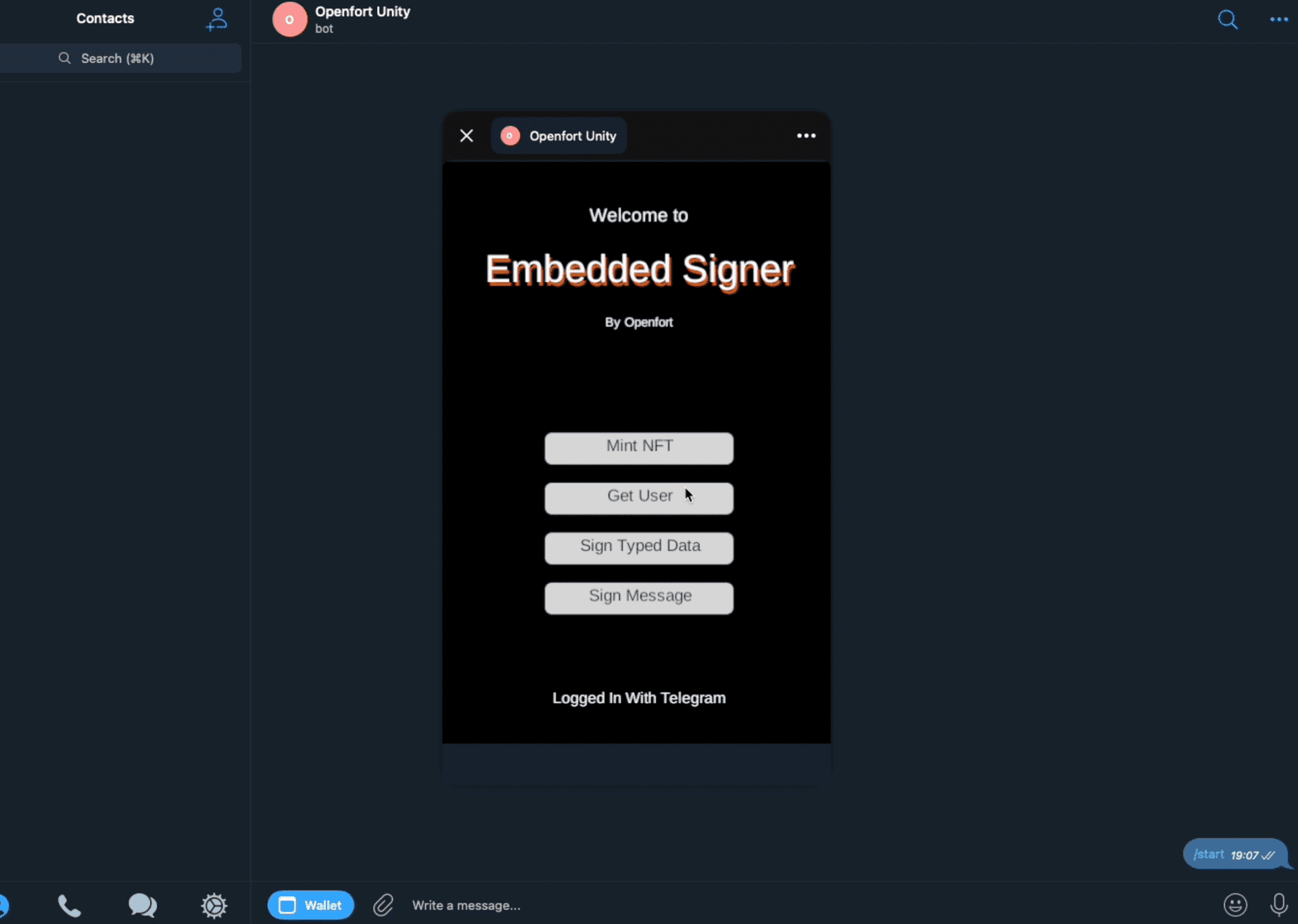
Authentication Flow
Telegram’s Web Apps SDK provides an initData object for user authentication within Mini-Apps. This data contains cryptographically signed user information.
Key Concepts:
initDataFlow:- The
initDataobject is provided when the Mini-App is opened within Telegram. - This object is sent to the backend for validation and serves as the authentication token for user interactions.
- The
- Unity WebGL Integration:
- Unity communicates with Telegram’s JavaScript SDK through Unity WebGL’s browser integration features.
Step 1: Set Up Unity WebGL Project
-
Install Dependencies:
- Open your Unity project.
- Install the Openfort Unity SDK by following the Unity Integration Guide.
-
Enable WebGL Support:
- Go to File > Build Settings.
- Select WebGL as the build target.
- Click Switch Platform to enable WebGL for your project.
-
Add Required Plugins:
- Include a JavaScript plugin for interacting with the Telegram Web Apps SDK. This will enable Unity WebGL to retrieve
initDatafrom Telegram.
- Include a JavaScript plugin for interacting with the Telegram Web Apps SDK. This will enable Unity WebGL to retrieve
Step 2: Initialize Telegram in Unity
Use Unity’s browser integration features to fetch initData from Telegram.
_31using UnityEngine;_31using Openfort.SDK;_31_31public class TelegramIntegration : MonoBehaviour_31{_31 void Start()_31 {_31 // Initialize Telegram Mini-App and fetch initData_31 string initData = InitTelegramApp();_31 Debug.Log("Init data: " + initData);_31_31 // Use initData for Openfort SDK_31 ThirdPartyOAuthRequest request = new ThirdPartyOAuthRequest(_31 ThirdPartyOAuthProvider.TelegramMiniApp,_31 initData,_31 TokenType.IdToken_31 );_31_31 // Example: Validate and fetch wallet information_31 Openfort.GetWallet(request, wallet =>_31 {_31 Debug.Log("Wallet Address: " + wallet.address);_31 });_31 }_31_31 string InitTelegramApp()_31 {_31 // JavaScript integration to retrieve initData_31 return "Telegram InitData Placeholder"; // Replace with actual implementation_31 }_31}
Step 3: Backend Setup
The backend validates initData and integrates with Openfort for wallet management.
-
Validate
initData:- Use Telegram’s cryptographic methods to ensure
initDataauthenticity. - Refer to the Telegram Documentation for implementation details.
- Use Telegram’s cryptographic methods to ensure
-
Integrate with Openfort:
- Use Openfort’s API to create wallets and sponsor transactions.
Step 4: Build and Test the Unity WebGL App
-
Build the Project:
- Go to File > Build Settings.
- Select WebGL and click Build and Run.
-
Host the WebGL App:
- Deploy the build to a web server.
- Ensure it is accessible via HTTPS, as Telegram requires secure connections for Mini-Apps.
-
Test in Telegram:
- Create a bot using BotFather and link the Mini-App.
- Open the Mini-App within Telegram to test functionality.
Notes and Best Practices
-
Using
initDataas Access Token:- In Telegram Mini-App integrations, the
initDataobject serves as the authentication token. TraditionalGetAccessToken()methods from Openfort are not applicable in this context.
- In Telegram Mini-App integrations, the
-
Security Reminder:
- Always validate
initDataon the server-side to prevent tampering.
- Always validate
This integration runs a Telegram Mini-App with Unity WebGL and Openfort, adding onchain features within Telegram.
Related reading
- How to build Telegram Mini-Apps with React -- a companion guide covering the same Telegram Mini-App integration using React instead of Unity
- Embedded wallets explained -- a deep dive into how the self-custodial wallets powering this integration work
- Cross-app wallets explained -- learn how wallets can persist across multiple apps and platforms
- Onboard users with guest accounts -- let Telegram users interact with your game instantly, without requiring a login step
- Introducing global wallets with the Ecosystem SDK -- discover how cross-app wallets enable cross-game player experiences