> **Can't find what you're looking for?** Use `search_docs` on the docs MCP server at `https://www.openfort.io/api/mcp` to find what you need.
>
> **Have feedback?** Use `submit_feedback` on the same MCP server.
# WebGL Setup
Openfort's Unity SDK leverages an iframe to secure the key material for a user's embedded wallet. Given the use of an iframe, we recommend testing builds with Openfort's Unity SDK in the browser, or on a non-WebGL platform in the Unity editor.
:::warning
WebGL builds run in the browser, so you must configure your hosting domain as an [allowed origin](https://www.openfort.io/docs/configuration/allowed-domains). This differs from native iOS/Android builds, which use [allowed native apps](https://www.openfort.io/docs/configuration/allowed-domains#native-apps) with bundle identifiers.
For example, if you host your WebGL build at `https://game.example.com`, add that domain to your allowed origins.
:::
* [WebGL Demo](https://github.com/openfort-xyz/sample-unity-webgl-embedded-signer) — Unity sample project. Watch a demo of setting up the Openfort SDK in a Unity Project.
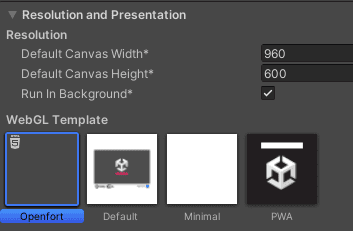
To configure settings for your WebGL build to work with Openfort, go to your Project Settings in the Unity editor. Next, select Player and navigate to WebGL. Set the following values:
* **In Resolution and Presentation**, select the `Openfort` WebGL template. The template ships in the SDK's [sample project](https://github.com/openfort-xyz/openfort-csharp-unity/tree/main/sample/Assets/WebGLTemplates/Openfort), not in the package; copy the `Openfort` folder into your project's `Assets/WebGLTemplates` folder first.
 * In **Other Settings/Optimization, set managed stripping level** to **minimal**
