> **Can't find what you're looking for?** Use `search_docs` on the docs MCP server at `https://www.openfort.io/api/mcp` to find what you need.
>
> **Have feedback?** Use `submit_feedback` on the same MCP server.
# Provider migration
This tool links users from one authentication provider to another, ensuring a smooth transition without losing any user data.
This guide demonstrates creating a migration from an **OIDC provider** with Google OAuth flow to **Openfort Google provider**. This is useful for migrating users from a custom OIDC provider to Openfort's Google provider.
## Creating a migration
1. Enable both your source and destination providers in the Openfort dashboard.
You can do this in the [Providers](https://dashboard.openfort.io/providers) section of your Openfort dashboard.
2. Start by going to the [Migration page](https://dashboard.openfort.io/migrations) in your Openfort dashboard and create a new one.
3. Select the source and destination providers, and add the matching criteria for the users you want to migrate.
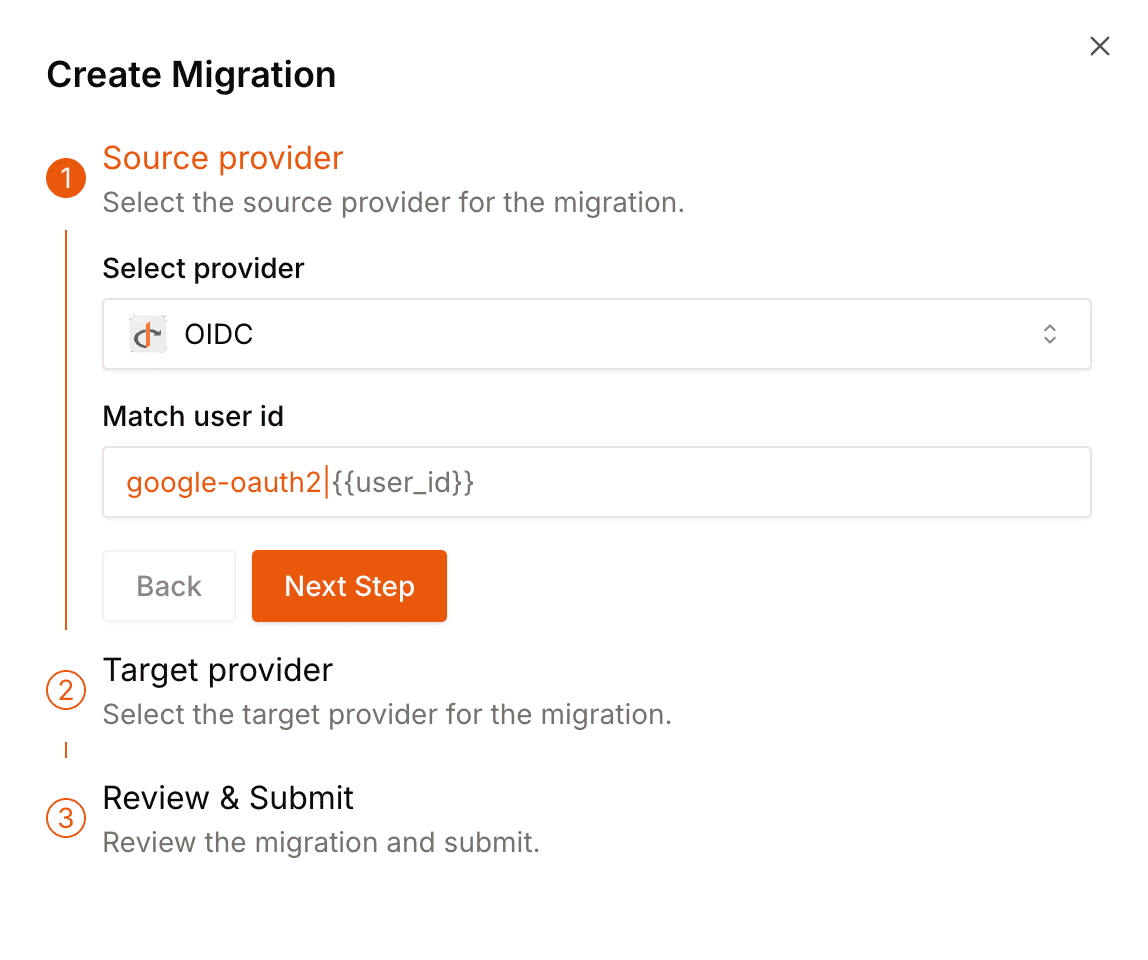 4. Do the same for the destination provider.
5. Click on **Create migration**.
6. Start the migration by clicking **Start migration**, next to **Ready to start**.
4. Do the same for the destination provider.
5. Click on **Create migration**.
6. Start the migration by clicking **Start migration**, next to **Ready to start**.
 7. While the migration is active, the first time a user logs in with **Openfort Google provider**, Openfort matches their user ID against the OIDC accounts using the pattern you set and links the Google login to that existing user.
When all users are migrated, mark the migration as complete by clicking **Mark as complete**. After that, logins with the destination provider are no longer matched against the source provider.
7. While the migration is active, the first time a user logs in with **Openfort Google provider**, Openfort matches their user ID against the OIDC accounts using the pattern you set and links the Google login to that existing user.
When all users are migrated, mark the migration as complete by clicking **Mark as complete**. After that, logins with the destination provider are no longer matched against the source provider.